
Skip to content

Web Interface

clauderon includes a web interface for managing sessions from your browser at http://localhost:3030.

Accessing the Web UI

Start the daemon and open your browser:

Terminal window
clauderon daemon

Then navigate to http://localhost:3030

Authentication

The web UI uses WebAuthn for secure passwordless authentication.

Login Page

Features

Dashboard

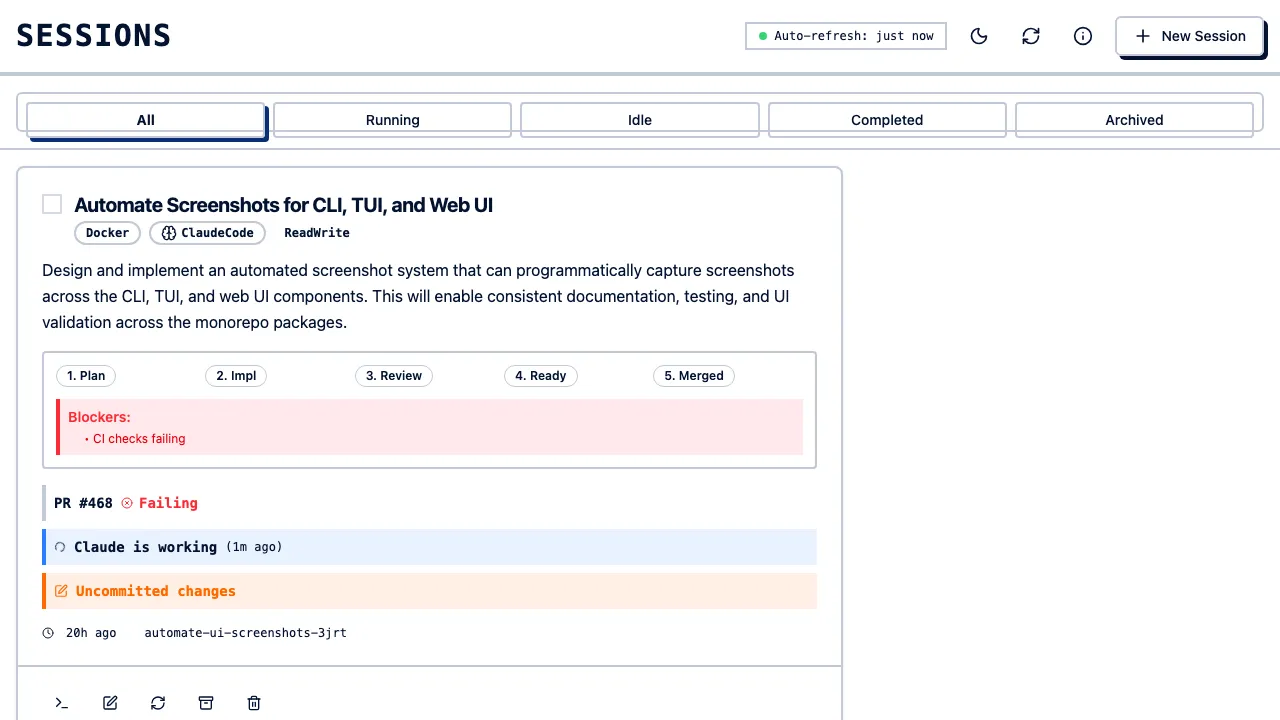
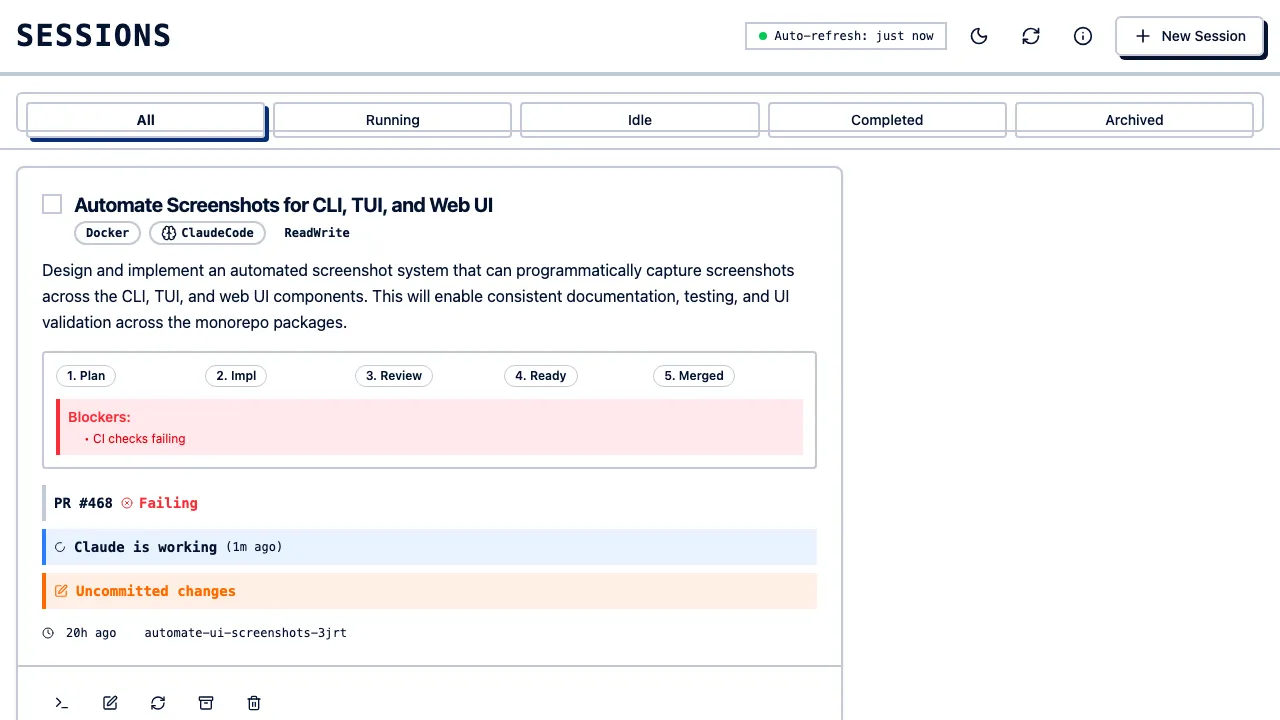
The main dashboard shows:

  • All active sessions
  • Session status (running, idle, completed)
  • Backend type (Zellij, Docker, etc.)
  • Agent type (Claude, Codex, Gemini)
  • Access mode (read-only, read-write)
  • Creation time

Dashboard

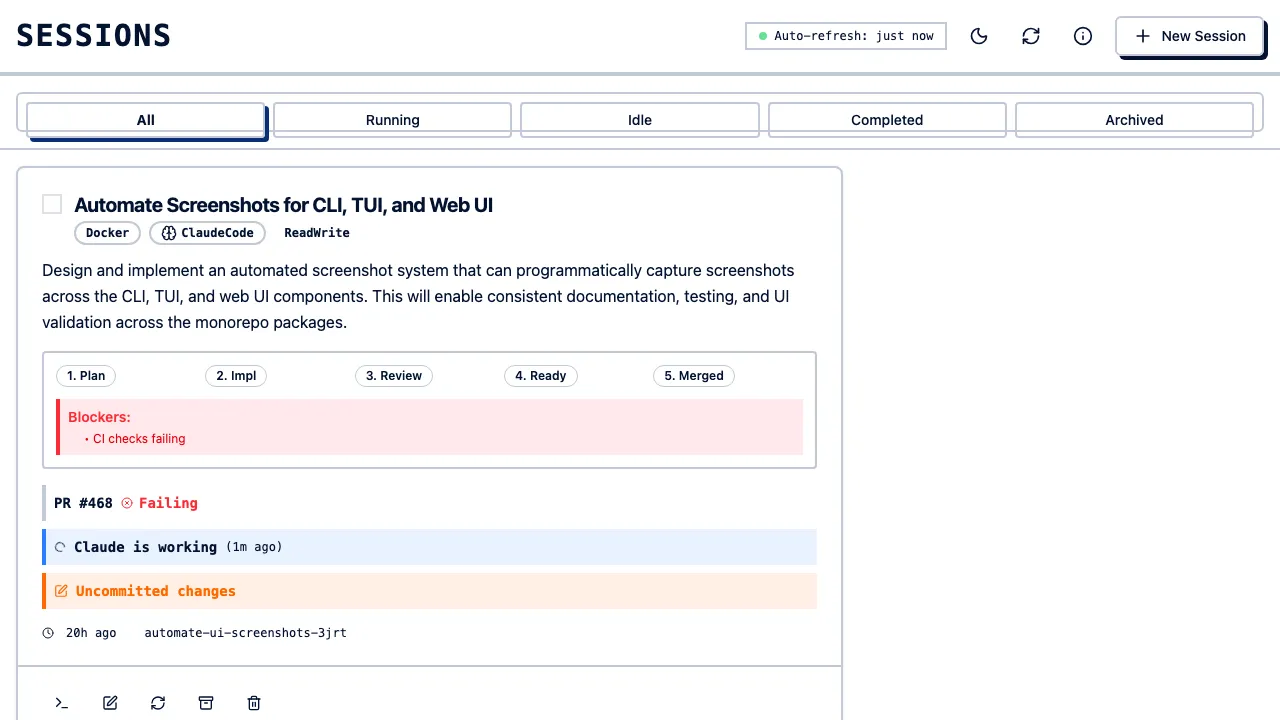
You can filter sessions by status, backend, agent, and other criteria:

Session Filters

Empty State

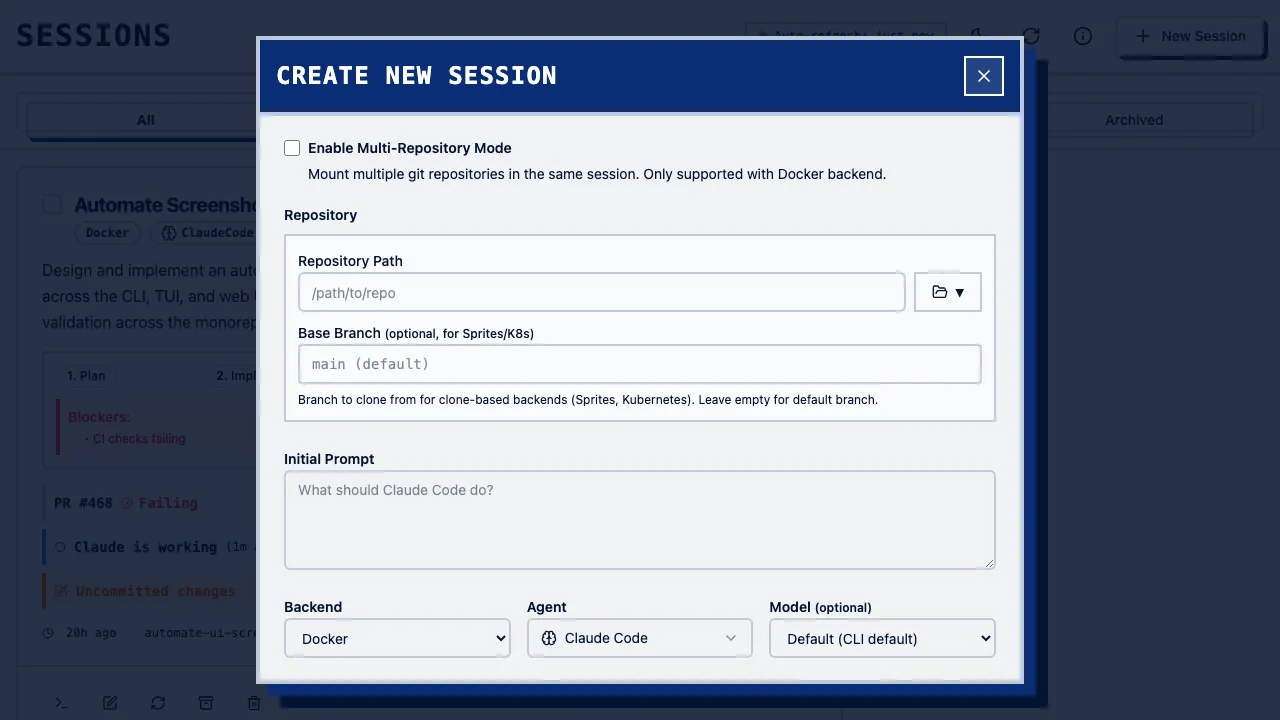
Create Session

Click “New Session” to create a session with:

  1. Repository Path: Select from recent repos or enter path
  2. Prompt: Initial task for the agent
  3. Backend: Choose from available backends
  4. Agent: Select AI agent
  5. Access Mode: Read-only or read-write

Create Session Dialog

Session Details

Click a session to view:

  • Chat history
  • Current task status
  • Token usage
  • Session logs
  • File changes

Real-time Updates

The web UI uses WebSocket connections for:

  • Live session status updates
  • Real-time chat streaming
  • Progress notifications

Session Management

Archive Sessions

Click the archive icon to hide completed sessions. Archived sessions can be viewed by toggling “Show Archived”.

Delete Sessions

Click the delete icon to permanently remove a session. This removes:

  • The git worktree
  • Backend resources
  • Database record

Change Access Mode

Toggle between read-only and read-write mode from the session dropdown menu.

Chat Interface

Viewing Chat History

The chat view shows:

  • User prompts
  • Agent responses
  • Tool calls and results
  • Errors and warnings

Continuing Conversations

Enter new prompts to continue the conversation with the agent.

Image Upload

Drag and drop images into the chat to share with the agent (for vision-capable agents).

Mobile Access

The web UI is responsive and works on mobile devices. For dedicated mobile apps, see Mobile Overview.

Authentication

No Authentication (Default)

By default, the web UI has no authentication and binds to localhost only.

WebAuthn Authentication

Enable passwordless authentication:

Terminal window
clauderon daemon --enable-webauthn-auth

Or in config:

~/.clauderon/config.toml
[features]
webauthn_auth = true

This enables:

  • Passkey registration
  • Biometric authentication
  • Hardware key support

Remote Access

SSH Tunnel

Access the web UI remotely via SSH tunnel:

Terminal window
# On your local machine
ssh -L 3030:localhost:3030 user@server

Then open http://localhost:3030 locally.

Reverse Proxy

For production deployments, use a reverse proxy with TLS:

server {
listen 443 ssl;
server_name clauderon.example.com;
ssl_certificate /path/to/cert.pem;
ssl_certificate_key /path/to/key.pem;
location / {
proxy_pass http://localhost:3030;
proxy_http_version 1.1;
proxy_set_header Upgrade $http_upgrade;
proxy_set_header Connection "upgrade";
proxy_set_header Host $host;
}
}

Enable WebAuthn for authentication when exposing publicly.

API Access

The web UI is built on the REST and WebSocket APIs. For programmatic access, see API Reference.

Keyboard Shortcuts

ShortcutAction
nNew session
j / kNavigate sessions
EnterOpen session details
aArchive session
dDelete session
/Focus search
?Show shortcuts

Development Mode

For frontend development:

Terminal window
clauderon daemon --dev

This serves the frontend from the filesystem instead of the embedded assets, enabling hot reload.

Troubleshooting

Page Not Loading

Check daemon is running:

Terminal window
curl http://localhost:3030/health

WebSocket Disconnected

WebSocket connections may drop. The UI automatically reconnects.

Session Not Appearing

Refresh the page or check:

Terminal window
clauderon list

Slow Performance

Large chat histories may slow the UI. Archive old sessions to improve performance.

See Also