
Quick Start
This guide will walk you through creating your first clauderon session.
1. Start the Daemon
clauderon requires a background daemon for session management:
clauderon daemonThe daemon starts:
- HTTP server at http://localhost:3030
- Credential proxy for secure token injection
- Session lifecycle management
Keep this terminal running, or run the daemon in the background.
2. Create a Session
Via CLI
clauderon create --repo ~/my-project --prompt "Fix the login bug"Required flags:
--repo- Path to your git repository--prompt- Initial task for the AI agent
Optional flags:
--backend- zellij (default), docker, kubernetes, sprites, apple--agent- claude (default), codex, gemini--access-mode- read-write (default), read-only
Via Web UI
- Open http://localhost:3030
- Click “New Session”
- Select repository and enter prompt
- Choose backend and agent
Via TUI
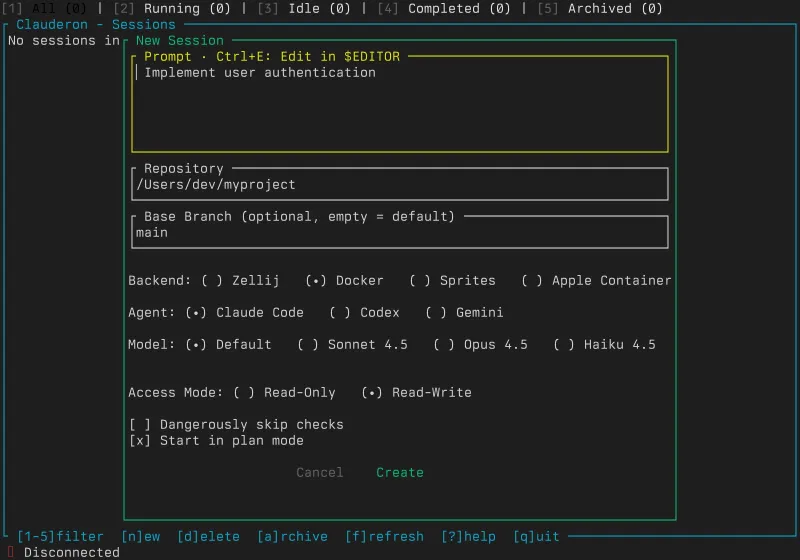
clauderon tuiPress n to create a new session interactively.

Keyboard shortcuts:
n- Create new sessionEnter- Attach to sessiona- Archive sessiond- Delete sessionj/k- Navigate up/down?- Show helpq- Quit

3. Configure Credentials
Credentials are stored in ~/.clauderon/secrets/:
mkdir -p ~/.clauderon/secretsecho "your-github-token" > ~/.clauderon/secrets/github_tokenecho "your-anthropic-token" > ~/.clauderon/secrets/anthropic_oauth_tokenchmod 600 ~/.clauderon/secrets/*Or use 1Password for automatic credential injection (see 1Password Guide).
Supported Credentials
| Credential | File Name |
|---|---|
| GitHub | github_token |
| Anthropic OAuth | anthropic_oauth_token |
| OpenAI/Codex | openai_api_key |
| PagerDuty | pagerduty_token |
| Sentry | sentry_auth_token |
| Grafana | grafana_api_key |
| npm | npm_token |
4. Session Lifecycle
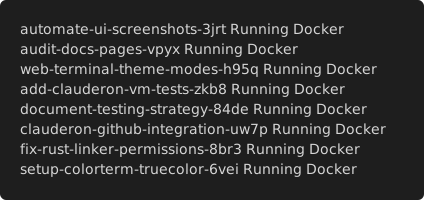
# List sessionsclauderon list
# List including archivedclauderon list --archived
# Attach to session terminalclauderon attach <session-name>
# Archive (hide but preserve)clauderon archive <session-name>
# Restore archived sessionclauderon unarchive <session-name>
# Delete permanentlyclauderon delete <session-name>
When you delete a session, you’ll see a confirmation dialog:

If you don’t have any sessions yet, you’ll see an empty state:

Example Workflows
Bug Fix Session
# Start a session to fix a specific bugclauderon create \ --repo ~/my-project \ --prompt "Fix the authentication timeout bug in the login handler"Code Review Session (Read-Only)
# Create a read-only session for safe code explorationclauderon create \ --access-mode read-only \ --repo ~/my-project \ --prompt "Review the recent changes to the payment module"Docker-Isolated Session
# Use Docker for full isolationclauderon create \ --backend docker \ --repo ~/my-project \ --prompt "Refactor the database layer"Next Steps
- Choose a Backend - Compare isolation options
- Choose an Agent - Compare AI agents
- Configure 1Password - Secure credential management
- Web Interface Guide - Browser-based session management
- CLI Reference - Complete command documentation