
Skip to content

Terminal UI (TUI)

The Terminal UI (TUI) provides an interactive, keyboard-driven interface for managing Clauderon sessions directly in your terminal. It offers a rich visual experience with real-time updates, session filtering, and direct container attachment.

Starting the TUI

Terminal window
clauderon tui

The TUI will start immediately and display your session list with live status updates.

UI Overview

Session List View

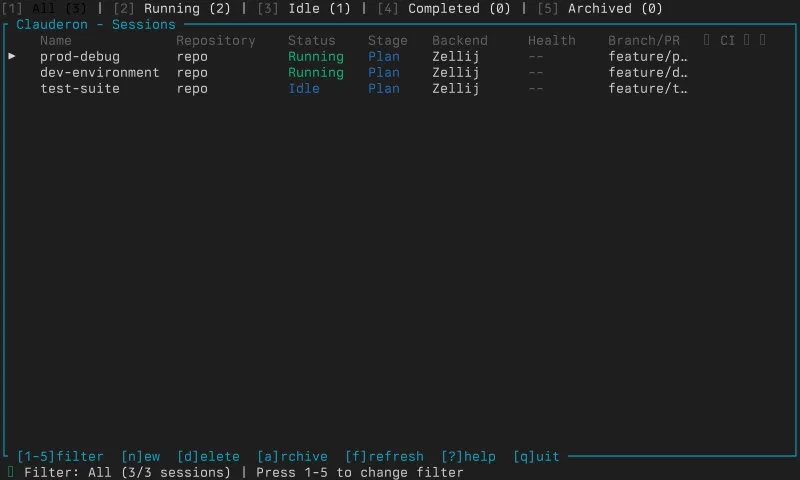
The main view displays all your sessions in a scrollable list with:

  • Session name and metadata (repository, backend, agent)
  • Status indicators (Running, Idle, Stopped, Hibernated, Error, etc.)
  • Health status (displayed via color coding)
  • Created/last used timestamps
  • Resource information (backend-specific)

Status Bar

The bottom status bar shows:

  • Connection indicator - Shows connection status to Clauderon daemon
  • Filter status - Current filter (All/Running/Idle/Completed/Archived)
  • Help text - Context-sensitive keyboard shortcut reminders
  • Auto-refresh indicator - Shows when auto-refresh is enabled

Session Filters

Press the number keys to filter sessions by status:

  • 1 - All sessions
  • 2 - Running sessions
  • 3 - Idle sessions
  • 4 - Completed sessions
  • 5 - Archived sessions

Keyboard Shortcuts

Session List Navigation

KeyAction
nCreate new session
EnterAttach to selected session
aArchive selected session
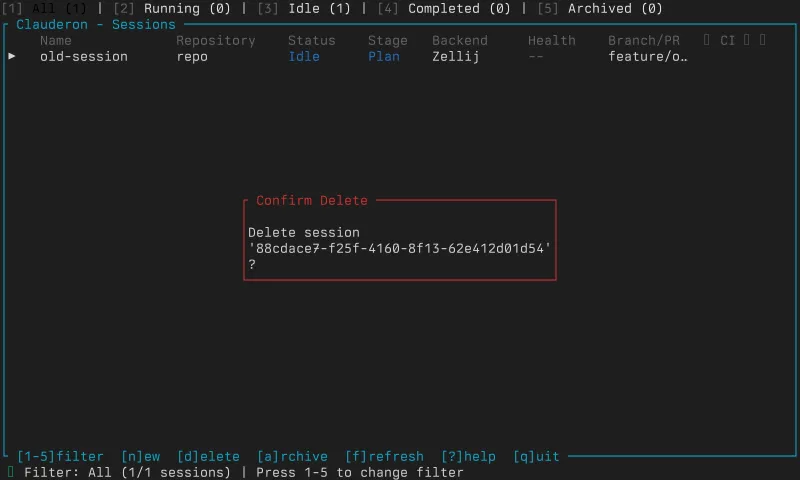
dDelete selected session
j or Move selection down
k or Move selection up
gJump to top of list
GJump to bottom of list
/Search sessions (filter by name)
rToggle auto-refresh
hShow health status modal
1-5Filter by status
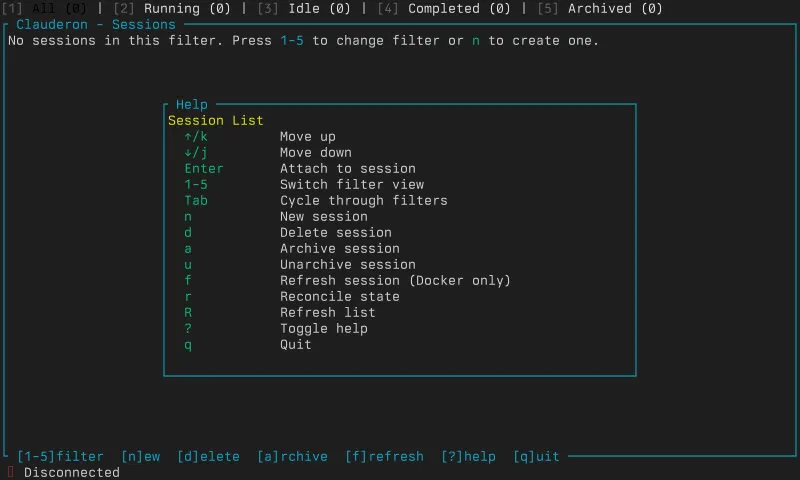
?Show help
qQuit TUI

Attached Mode

When attached to a session, you can:

KeyAction
Ctrl+LExit locked mode (unlock to access TUI shortcuts)
Ctrl+MShow signal menu (send signals to container)
Ctrl+PSwitch to previous session
Ctrl+NSwitch to next session
Ctrl+QDetach from session (return to list view)

By default, attached mode is “locked” - all keystrokes are forwarded to the container. Press Ctrl+L to unlock and access TUI shortcuts.

Copy Mode

Copy mode allows you to select and copy terminal output:

KeyAction
[Enter copy mode (from unlocked attached mode)
h/j/k/lNavigate (Vim-style, if enabled)
Arrow keysNavigate
vStart visual selection
yCopy selected text to clipboard
ESCExit copy mode

Note: Vim-style navigation in copy mode is disabled by default. Enable via configuration.

Scroll Mode

Scroll through session output:

KeyAction
↑/↓Scroll line by line
Page UpScroll up one page
Page DownScroll down one page
HomeJump to top of buffer
EndJump to bottom (live output)

The scrollback buffer retains up to 10,000 lines of output.

Session Creation Dialog

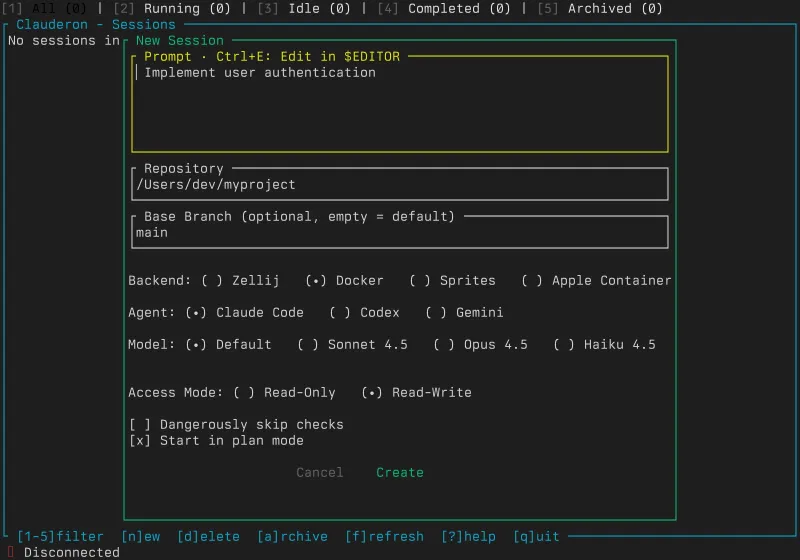
Press n to open the session creation dialog.

Repository Selection

  1. Recent repositories - Select from recently used repositories
  2. Browse directories - Navigate filesystem to select a directory
  3. Enter path manually - Type absolute path to repository

The directory browser shows:

  • . - Current directory (select to use this directory)
  • .. - Parent directory
  • Subdirectories (navigate with Enter)
  • Git repository indicators

Session Configuration

After selecting a repository, configure:

Basic Settings

  • Session name - Auto-generated from repository name (editable)
  • Backend - Choose execution backend (Docker, Kubernetes, Zellij, Sprites, Apple Container)
  • Agent - Choose AI agent (Claude Code, GPT Codex, etc.)
  • Access mode - Choose access level (read-only, read-write, full-access)

Advanced Options

  • Plan mode - Enable plan mode (creates implementation plan before executing)
  • Base branch - Select base branch for git operations
  • Model override - Choose specific model (Claude Opus 4.5, Sonnet 4.5, Haiku 4.5, etc.)

Multi-Line Prompt

Enter your initial prompt for the agent:

  • Type directly in the prompt field
  • Use Ctrl+E to open external editor (uses $EDITOR or vim)
  • Multi-line input supported

Image Attachments

Attach images to your session:

  1. Press i to add image attachment
  2. Enter absolute path to image file
  3. Image will be included in initial prompt

Supported formats: PNG, JPG, JPEG, GIF, WebP

Backend-Specific Options

Depending on the selected backend, additional options may appear:

Docker:

  • Image selection
  • Volume mode (bind mount vs Docker volume)
  • Resource limits (CPU, memory)
  • Network mode

Kubernetes:

  • Namespace selection
  • Storage class selection
  • Resource requests/limits
  • Node selector labels

Sprites:

  • Hibernation timeout
  • Build caching options

Apple Container:

  • Rosetta emulation (for x86_64 compatibility on Apple Silicon)

Advanced Features

Locked Mode

When attached to a session, the TUI starts in “locked mode”:

  • All keystrokes forwarded to container - Normal terminal interaction
  • No TUI shortcuts active - Full control given to container process
  • Press Ctrl+L to unlock - Access TUI shortcuts like Ctrl+Q to detach

This ensures your development environment works naturally without interference.

Signal Menu

Press Ctrl+M in unlocked attached mode to show the signal menu:

  • SIGINT (Ctrl+C) - Interrupt process
  • SIGTSTP (Ctrl+Z) - Suspend process
  • SIGQUIT - Quit with core dump
  • SIGTERM - Terminate gracefully
  • SIGKILL - Force kill (use with caution)

Use arrow keys to select signal, press Enter to send.

Session Switching

While attached to a session, quickly switch to another:

  • Ctrl+P - Switch to previous session in list
  • Ctrl+N - Switch to next session in list

This allows rapid context switching without detaching.

Scrollback Buffer

The TUI maintains a 10,000-line scrollback buffer for each session:

  • Automatic truncation - Oldest lines removed when buffer fills
  • Persistent across detach/attach - Buffer preserved when you detach
  • Fast navigation - Efficient scrolling even with full buffer

Auto-Refresh

Toggle auto-refresh with r:

  • Enabled - Session list updates every 2 seconds
  • Disabled - Manual refresh only (press r to refresh once)

Auto-refresh is useful for monitoring session status changes but can be disabled to reduce resource usage.

Health Status Modal

Press h on any session to view detailed health information:

  • Current health state - Healthy, Stopped, Hibernated, Error, etc.
  • Available actions - Start, Wake, Recreate, Cleanup
  • Data preservation indicators - Shows whether actions preserve session data
  • Error details - For sessions in error state
  • Reconciliation status - Shows reconciliation attempts and next retry

Available actions vary by health state:

StateActions
HealthyRecreate, Cleanup
StoppedStart, Recreate, Cleanup
HibernatedWake, Recreate, Cleanup
ErrorRecreate, Recreate Fresh, Cleanup
MissingRecreate, Recreate Fresh, Cleanup
CrashLoopRecreate Fresh, Cleanup

Data preservation:

  • Preserves data - Session history, metadata, git state retained
  • ⚠️ Fresh start - Container state reset, files restored from git
  • Destructive - All data deleted

Recreate Workflows

When a session is in error state, use recreate workflows:

  1. Recreate - Rebuild container with existing git clone

    • Preserves: Session history, metadata, uncommitted changes
    • Rebuilds: Container, environment, agent connection
  2. Recreate Fresh - Rebuild with fresh git clone

    • Preserves: Session history, metadata
    • Resets: Git repository (uncommitted changes lost), container
  3. Cleanup - Delete all resources

    • Removes: Container, volumes, session metadata
    • Irreversible - Confirm before proceeding

Limitations vs Other UIs

The TUI provides excellent session management but has some limitations compared to the Web UI:

Not Available in TUI

  • Chat/message history interface - Cannot view or replay agent conversation
  • Metadata editing - Cannot edit session metadata (use CLI or Web UI)
  • System status dashboard - No global credentials, usage tracking, or health overview
  • Multi-repository sessions - Cannot create sessions with multiple repositories
  • Model selection UI - Cannot browse all available models (must type model ID)
  • Advanced filtering - No filtering by backend, agent, date range, etc.
  • Bulk operations - Cannot archive/delete multiple sessions at once
  • File upload during session - Cannot upload files to running sessions

CLI Alternative

For features not in TUI, use CLI commands:

Terminal window
# Edit session metadata
clauderon metadata <session-name> --description "New description"
# View system status
clauderon status
# Create multi-repo session (use Web UI or API)
# View conversation history (use Web UI)

Troubleshooting

Terminal Resize Issues

Problem: UI doesn’t respond to terminal resize

Solution:

Terminal window
# Force TUI restart
pkill -SIGWINCH clauderon
# Or exit and restart

Connection Problems

Problem: “Connection lost” in status bar

Causes:

  • Clauderon daemon not running
  • Database lock held by another process
  • Filesystem permissions issue

Solution:

Terminal window
# Check daemon status
clauderon status
# Restart daemon
clauderon serve --reset
# Check database permissions
ls -la ~/.clauderon/db.sqlite

Key Binding Conflicts

Problem: Keyboard shortcuts not working

Causes:

  • Terminal emulator intercepts shortcuts
  • tmux/screen key bindings conflict
  • Locked mode still active

Solutions:

Terminal window
# Check if locked mode is active
# Press Ctrl+L to unlock
# Configure terminal to pass through shortcuts
# (varies by terminal emulator)
# Use alternative shortcuts
# Many commands have multiple key bindings

Slow Performance

Problem: TUI feels sluggish

Causes:

  • Auto-refresh with many sessions
  • Large scrollback buffer
  • Slow backend health checks

Solutions:

Terminal window
# Disable auto-refresh (press 'r')
# Archive old sessions (press 'a')
# Use session filters (press '1-5')

Garbled Display

Problem: UI rendering corrupted

Causes:

  • Terminal not compatible with TUI
  • Color scheme issues
  • Unicode rendering problems

Solutions:

Terminal window
# Try different terminal emulator
# Disable colors in terminal settings
# Update terminal emulator to latest version
# Use CLI as fallback
clauderon list
clauderon attach <session-name>

Copy Mode Not Working

Problem: Cannot copy text from terminal

Causes:

  • Copy mode disabled in configuration
  • Vim key bindings conflict
  • Clipboard integration not available

Solutions:

Terminal window
# Use terminal's native copy (Cmd+C on macOS, Ctrl+Shift+C on Linux)
# Check clipboard integration: xclip (Linux) or pbcopy (macOS)
# Enable copy mode in configuration

Session Attachment Hangs

Problem: Pressing Enter on session doesn’t attach

Causes:

  • Backend container not running
  • Proxy connection failed
  • Session in error state

Solutions:

Terminal window
# Check session health (press 'h')
# Try recreating session
# Check backend status (e.g., 'docker ps' for Docker backend)
# View logs: clauderon logs <session-name>

Configuration

TUI behavior can be customized via configuration file (~/.config/clauderon/config.toml):

[tui]
# Auto-refresh interval (seconds)
refresh_interval = 2
# Default filter on startup
default_filter = "all" # all, running, idle, completed, archived
# Scrollback buffer size (lines)
scrollback_size = 10000
# Enable Vim-style navigation in copy mode
vim_mode = false
# Default to locked mode when attaching
default_locked = true
# Mouse support (experimental)
mouse_enabled = false

Tips & Best Practices

  1. Use filters - Press 2 to see only running sessions
  2. Archive old sessions - Keep list manageable (press a)
  3. Search for sessions - Press / to filter by name
  4. Quick attachment - Type session name prefix and press Enter
  5. Monitor health - Press h to check session health before attaching
  6. Auto-refresh off - Disable for large session lists (press r)
  7. Use locked mode - Prevents accidental TUI shortcuts during coding
  8. Signal menu safety - Use Ctrl+M menu instead of Ctrl+C for safer interruption

Next Steps