

CLI Reference
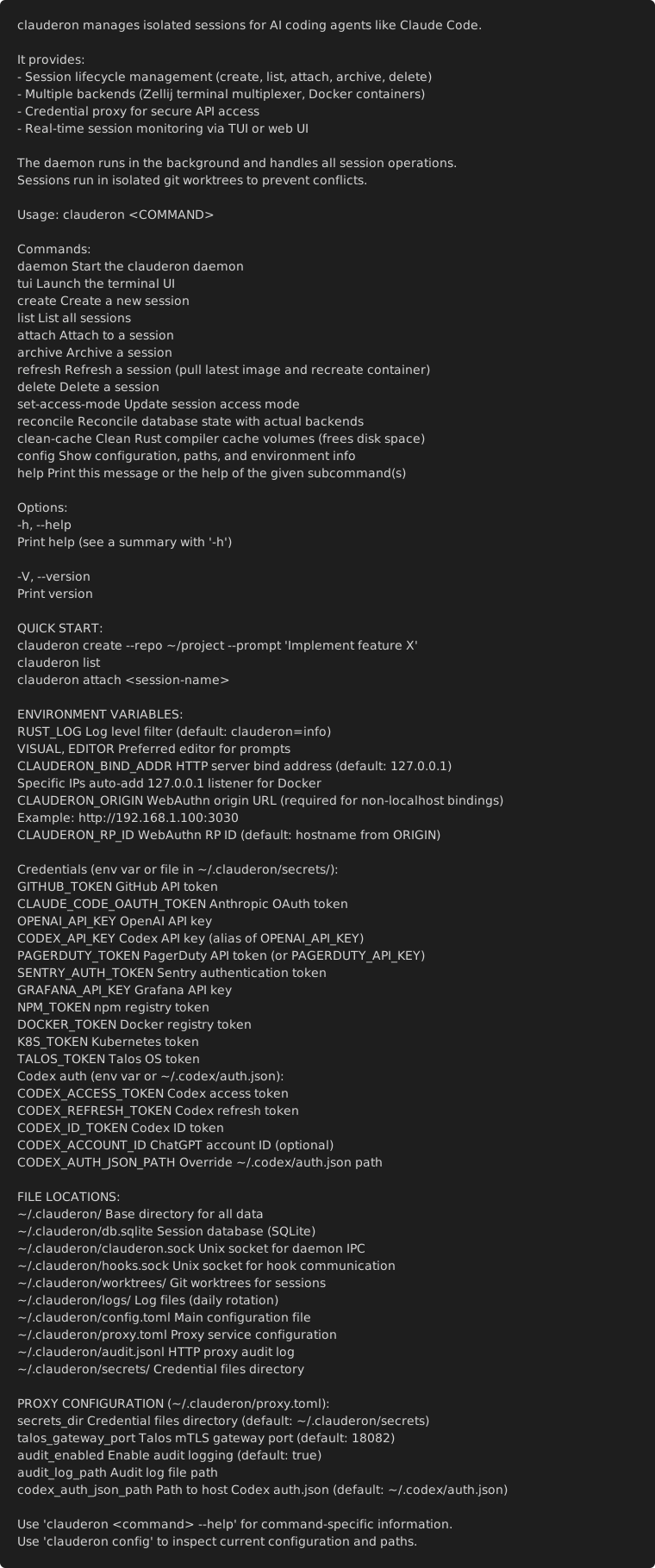
Global Options
--help, -h Print help--version, -V Print version
Commands
clauderon daemon
Start the background daemon (required for all operations).
clauderon daemon [OPTIONS]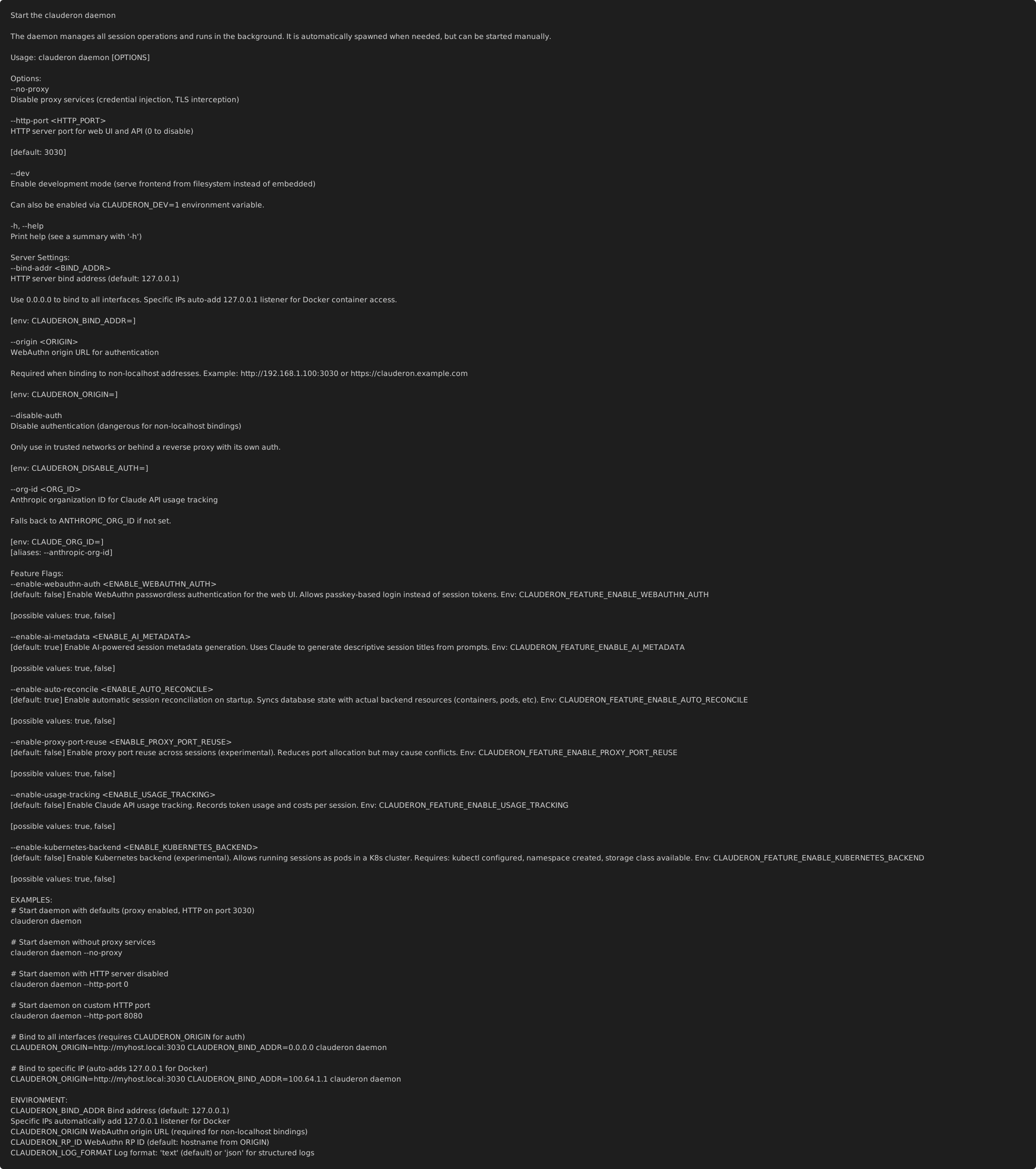
Options:
--http-port <PORT> HTTP server port (default: 3030, 0 to disable)--dev Development mode (serve frontend from filesystem)Feature Flags:
| Flag | Default | Description |
|---|---|---|
--enable-webauthn-auth | false | WebAuthn passwordless authentication for web UI |
--enable-ai-metadata | true | AI-generated session titles from prompts |
--enable-auto-reconcile | true | Sync database with backends on startup |
--enable-usage-tracking | false | Track Claude API usage per session |
--enable-experimental-models | false | Enable experimental AI models (Codex, Gemini) |
See Feature Flags Reference for detailed documentation.
Example:
# Start daemon with default settingsclauderon daemon
# Start with AI-generated session titlesclauderon daemon --enable-ai-metadata
clauderon create
Create a new session.
clauderon create --repo <PATH> --prompt <TEXT> [OPTIONS]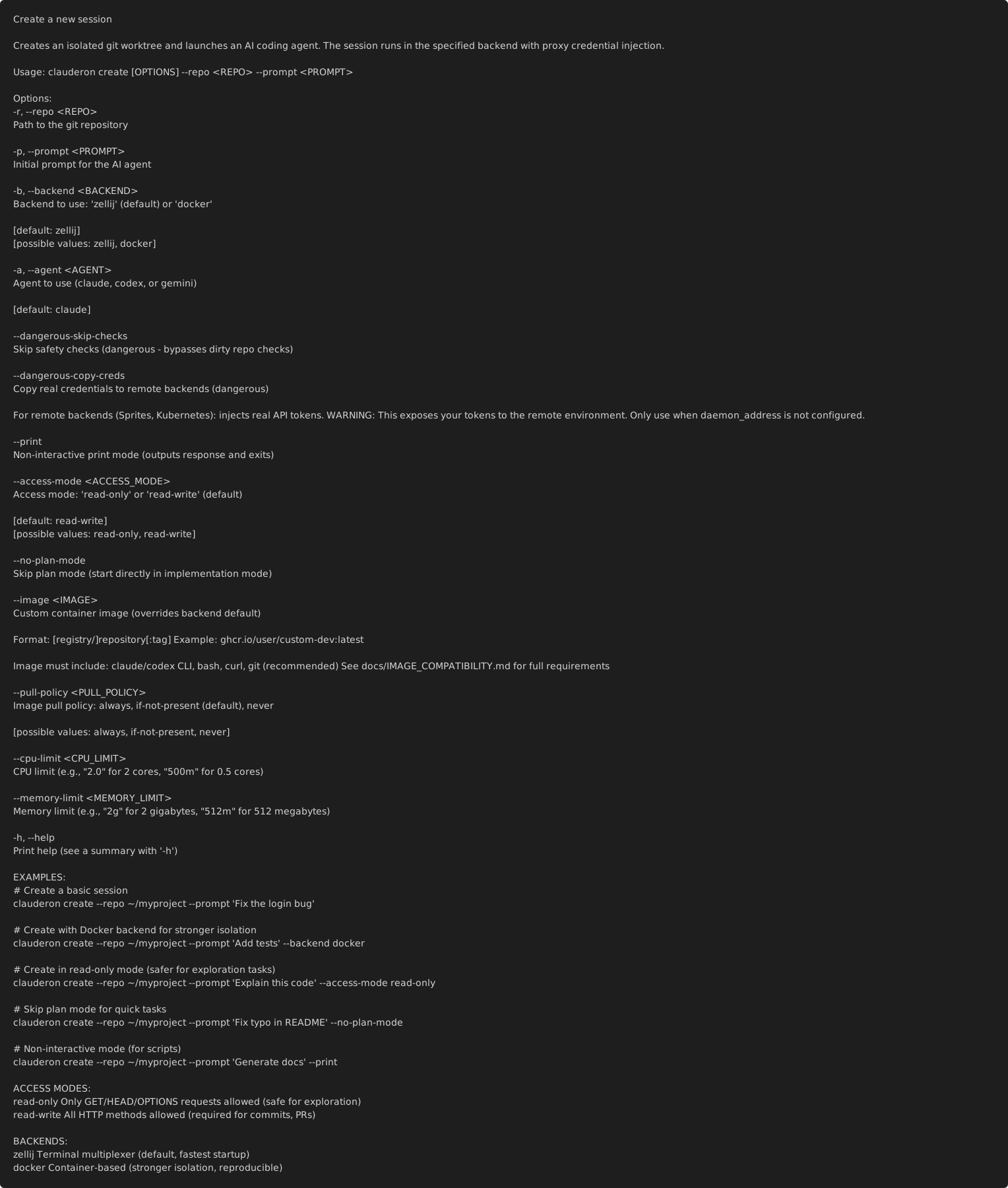
Required:
--repo <PATH> Git repository path--prompt <TEXT> Initial prompt for the AI agentOptions:
--backend <BACKEND> Backend: zellij (default), docker--agent <AGENT> Agent: claude (default), codex, gemini--no-plan-mode Skip plan mode, go straight to implementation--print Non-interactive mode (print output, exit when done)--dangerous-skip-checks Bypass dirty repo checksDocker-specific:
--image <IMAGE> Custom container image--pull-policy <POLICY> Pull policy: always, if-not-present (default), never--cpu-limit <LIMIT> CPU limit (e.g., "2.0" or "500m")--memory-limit <LIMIT> Memory limit (e.g., "2g" or "512m")Examples:
# Basic session with default backend (Zellij)clauderon create --repo ~/project --prompt "Fix the login bug"
# Docker with custom imageclauderon create --backend docker --image rust:1.85 \  --repo ~/project --prompt "Build the project"
# Non-interactive for scriptsclauderon create --print \  --repo ~/project --prompt "Generate documentation"
# Skip plan mode for quick tasksclauderon create --no-plan-mode \  --repo ~/project --prompt "Add a console.log statement"
# Docker with resource limitsclauderon create --backend docker \  --cpu-limit 4 --memory-limit 8g \  --repo ~/project --prompt "Heavy computation task"
clauderon tui
Launch the terminal user interface.
clauderon tui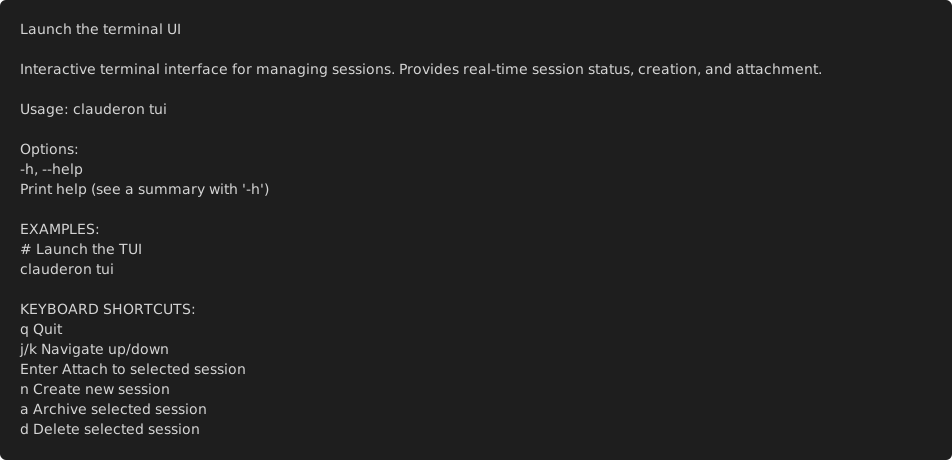
Keyboard shortcuts:
| Key | Action |
|---|---|
n | Create new session |
Enter | Attach to session |
a | Archive session |
u | Unarchive session |
d | Delete session |
j / k | Navigate down/up |
g / G | Go to first/last |
r | Refresh list |
q | Quit |
clauderon list
List all sessions.
clauderon list [OPTIONS]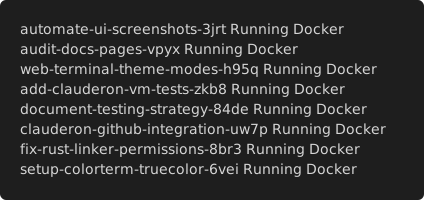
Options:
--archived Include archived sessions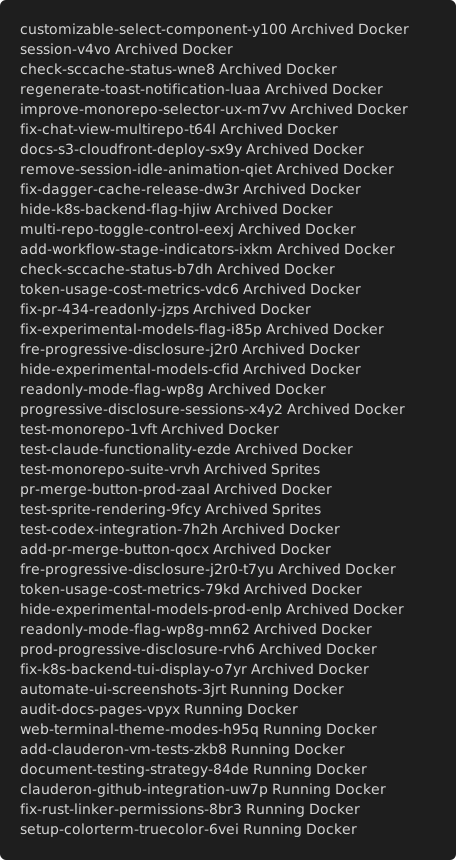
Output columns:
- Name
- Backend
- Agent
- Status
- Created
clauderon attach
Attach to a session’s terminal.
clauderon attach <NAME>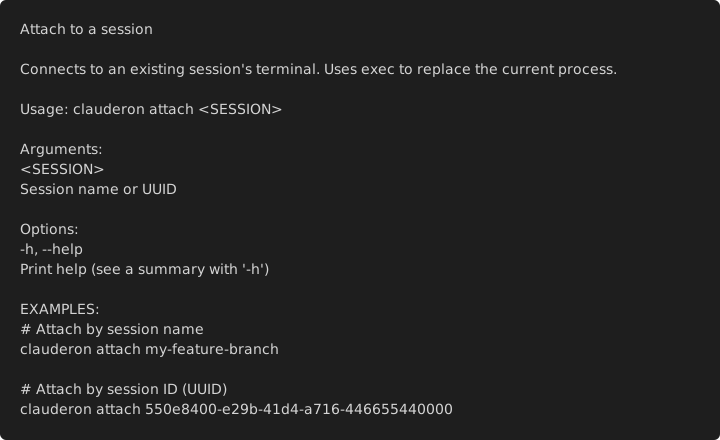
Arguments:
<NAME>- Session name
Attaches to the running session’s terminal. For Zellij sessions, this opens the Zellij pane. For Docker sessions, this attaches to the container’s TTY.
clauderon archive
Archive a session (hide from default list but preserve).
clauderon archive <NAME>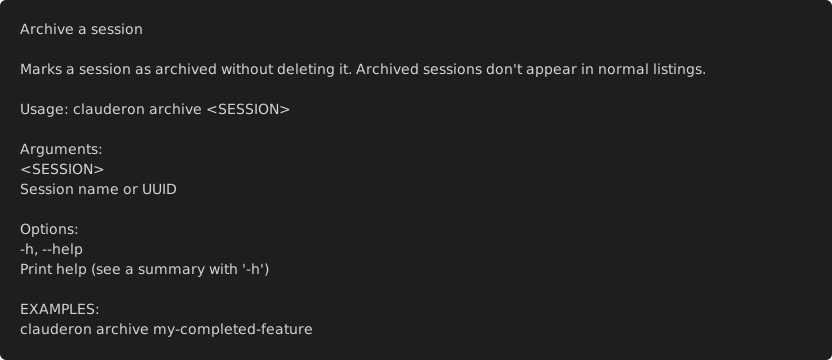
Arguments:
<NAME>- Session name
Archived sessions are hidden from clauderon list but can be seen with clauderon list --archived. Use this to keep completed sessions without cluttering your active list.
clauderon delete
Delete a session permanently.
clauderon delete [OPTIONS] <NAME>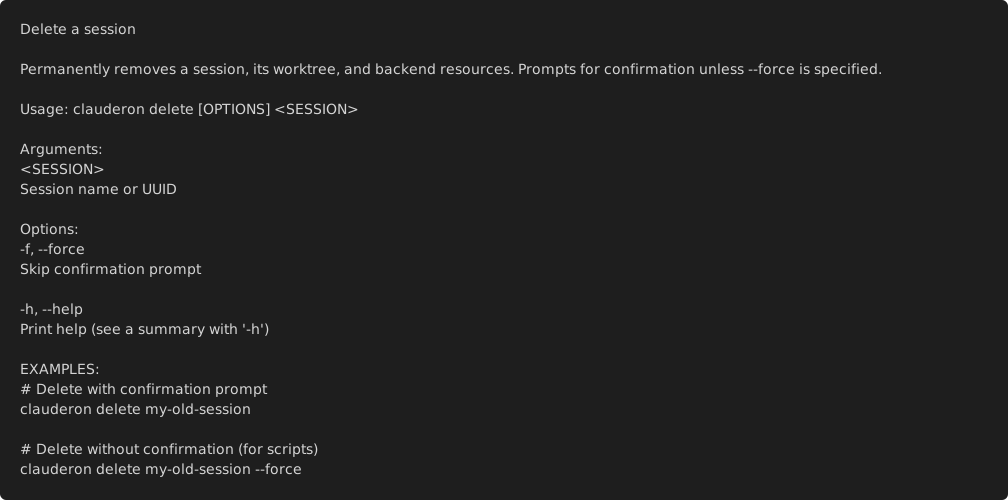
Arguments:
<NAME>- Session name
Options:
--force, -f Force delete without confirmationThis removes the session from the database, deletes the git worktree, and cleans up backend resources (container, Zellij session, etc.).
clauderon refresh
Refresh a Docker session (pull latest image, recreate container).
clauderon refresh <NAME>Arguments:
<NAME>- Session name
This command:
- Stops the existing container
- Pulls the latest version of the image
- Creates a new container with the same configuration
- Starts the new container
Useful for updating to newer Claude Code versions.
clauderon reconcile
Synchronize database with actual backend state.
clauderon reconcileUseful after:
- System crashes
- Manual backend changes (manually deleting containers, etc.)
- Database corruption
This command scans all backends and updates the database to match reality.
clauderon clean-cache
Manage Docker cache volumes.
clauderon clean-cache [OPTIONS]Options:
--force Actually remove volumes (default: dry run)clauderon creates shared Docker volumes for caching:
clauderon-cargo-registry- Cargo package cacheclauderon-cargo-git- Git dependenciesclauderon-sccache- Compilation cache
Without --force, shows what would be cleaned. With --force, removes the volumes.
clauderon config
Configuration management subcommands.
clauderon config <SUBCOMMAND>clauderon config show
Show current configuration values.
clauderon config showclauderon config paths
List all file paths used by clauderon.
clauderon config pathsclauderon config env
List all environment variables and their values.
clauderon config envEnvironment Variables
| Variable | Description | Default |
|---|---|---|
RUST_LOG | Log level filter | clauderon=info |
CLAUDERON_BIND_ADDR | HTTP bind address | 127.0.0.1 |
CLAUDERON_ORIGIN | WebAuthn origin URL | Auto-detected |
CLAUDERON_DEV | Enable dev mode | 0 |
Feature Flags (Environment)
Feature flags can also be set via environment variables:
| Variable | Default | Description |
|---|---|---|
CLAUDERON_FEATURE_ENABLE_WEBAUTHN_AUTH | false | WebAuthn passwordless auth |
CLAUDERON_FEATURE_ENABLE_AI_METADATA | true | AI-generated session titles |
CLAUDERON_FEATURE_ENABLE_AUTO_RECONCILE | true | Auto-reconcile on startup |
CLAUDERON_FEATURE_ENABLE_USAGE_TRACKING | false | Claude usage tracking |
CLAUDERON_FEATURE_ENABLE_EXPERIMENTAL_MODELS | false | Experimental AI models |
Values: 1, true, yes, on to enable; 0, false, no, off to disable.
See Feature Flags Reference for detailed documentation.
Exit Codes
| Code | Meaning |
|---|---|
| 0 | Success |
| 1 | General error |
| 2 | Configuration error |
| 3 | Session not found |
| 4 | Backend error |
See Also
- Feature Flags Reference - Detailed feature flag documentation
- Configuration Reference - Configuration file options
- Environment Variables - Complete environment variable reference
- File Locations - Where clauderon stores data